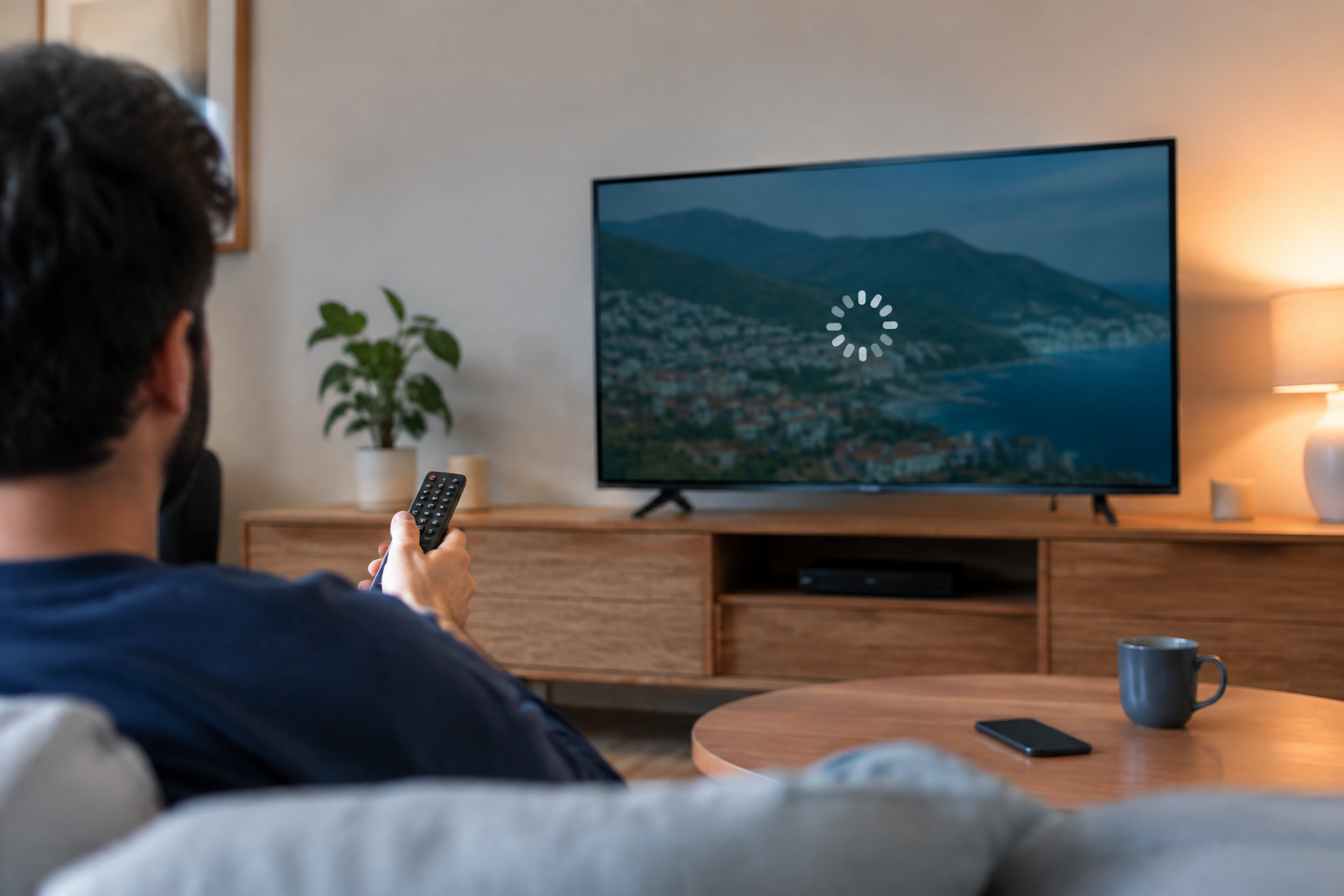
Streaming interruptions can turn a live game, news broadcast, or movie into a frustrating experience. If you are searching for How to fix IPTV buffering, the cause is usually related to your internet connection, Wi-Fi setup, streaming device, app, or IPTV server. The steps below are designed for viewers in the United States and will help you identify the problem and improve playback.
How to fix IPTV buffering: Start with the basics
Before changing advanced settings, determine whether the issue affects every channel or only specific streams. If one channel buffers while others play normally, the problem may be related to that particular stream or server. If every channel pauses, focus first on your home network and device.
- Pause the stream for a few seconds, then resume playback.
- Close other apps and downloads using your internet connection.
- Restart the IPTV app and your streaming device.
- Try another channel to see whether the problem is isolated.
- Test the service at different times to identify possible server congestion.
Check your internet connection
A stable connection matters more than a high advertised speed. IPTV video is delivered continuously, so brief drops in connectivity can cause buffering even when other websites appear to load normally.
Run a simple connection test
Use a speed-test app or website on the same device that is buffering. Repeat the test near your router and then in the room where your streaming device is located. A large difference between the two results suggests that Wi-Fi coverage or interference may be affecting playback.
For a practical approach to How to fix IPTV buffering, temporarily disconnect unused devices from the network. Pause cloud backups, game downloads, video calls, and large file transfers while streaming. If playback improves, bandwidth competition is likely contributing to the issue.
Restart your modem and router
- Turn off your streaming device.
- Unplug your modem and router from power.
- Wait about 60 seconds.
- Reconnect the modem and allow its connection to return.
- Reconnect the router and wait for the Wi-Fi network to appear.
- Restart the streaming device and test IPTV again.
Restarting can clear temporary network problems, but it will not correct weak Wi-Fi coverage or an unreliable internet service. If buffering continues on several devices, contact your internet provider and ask whether there are known service issues in your area.
Improve Wi-Fi performance
Streaming devices placed behind a television, inside a cabinet, or far from the router may receive a weaker signal. Move the router to an open, central location when possible, and keep it away from thick walls, large appliances, and other electronics that may interfere with the signal.
- Use the 5 GHz Wi-Fi band when the device is close enough to the router.
- Use the 2.4 GHz band when the device is farther away or separated by several walls.
- Move the router higher off the floor.
- Disconnect older devices that are no longer in use.
- Try a wired Ethernet connection for a compatible TV, streaming box, or Fire TV device.
If you are considering a replacement device, compare features in this guide to the best streaming devices for IPTV. A newer device may offer better network support, but changing hardware will not solve a problem caused by a poor internet connection or an overloaded IPTV source.
Check the IPTV app and streaming device
Outdated software, a full cache, or limited device resources can affect playback. Update the IPTV application and the operating system on your TV, Android box, Firestick, or other streaming hardware.
Clear the app cache
On many Android-based devices, open Settings, select Apps, choose your IPTV application, and select Clear Cache. Avoid selecting Clear Data unless you know your login details and playlist information, because that option may remove saved settings.
Fire TV users can review the IPTV service and setup considerations for Firestick before changing applications or reinstalling software. After clearing the cache, force-close the app, reopen it, and test the same channel again.
Reduce device load
- Close apps running in the background.
- Remove applications you no longer use.
- Restart the device before important live events.
- Install available firmware and system updates.
- Keep the device in a well-ventilated location.
For setup-specific instructions, the IPTV setup guide can help you review connection and application configuration steps for common streaming devices.
Adjust IPTV player settings
Some IPTV players allow you to change buffer size, playback engine, video quality, or hardware acceleration. These options differ by application, so change one setting at a time and test the result.
Try a different playback engine
If your app offers more than one playback engine, test the available options. One engine may work better with your device or with a particular stream format. If the picture becomes unstable after a change, return to the previous setting.
Lower video quality temporarily
High-resolution streams require more consistent bandwidth and device performance. If your service offers a lower-quality version of the same channel, use it as a test. If the lower-quality stream plays smoothly, your connection or device may be struggling with the higher video demand.
When evaluating How to fix IPTV buffering, avoid changing several player settings at once. Keeping a note of each adjustment makes it easier to identify which setting helped or caused a new problem.
Determine whether the IPTV server is the problem
If your internet connection is stable and other streaming services work normally, the IPTV provider or specific stream may be responsible. Compare several channels, including channels from different categories or regions. If only one group buffers, report the affected channel and the approximate time to the provider.
Do not assume that installing another player will repair an unavailable or overloaded stream. You can also review common service questions in the IPTV FAQ before contacting support. Use a legitimate service and verify that the channels you access are authorized for distribution in your location.
When should you use a VPN?
A VPN is not a universal solution for buffering. It can sometimes help diagnose routing or network-management issues, but it can also reduce available speed or add latency. If you test one, choose a nearby server, compare playback with and without it, and keep the option that provides the more stable result.
For a balanced explanation of possible use cases, read this guide about whether you really need a VPN for IPTV in the US or Canada. Never use a VPN to bypass laws, service restrictions, or account terms.
How to fix IPTV buffering on common devices
Fire TV or Firestick
- Restart the device from the settings menu.
- Clear the IPTV app cache.
- Remove unused applications if storage is limited.
- Move the device away from enclosed spaces and heat sources.
- Test a wired adapter or stronger Wi-Fi signal if available.
Android TV or Google TV
- Restart the television or streaming box.
- Update the IPTV app and system software.
- Clear the app cache without deleting saved data.
- Test both Wi-Fi bands if your router provides them.
For official information about Android TV features and supported devices, consult the official Android TV resource.
Smart TVs
- Restart the TV rather than leaving it in standby mode.
- Check for firmware updates.
- Close other streaming applications.
- Use Ethernet if the TV is close enough to the router.
- Reinstall the IPTV app only after confirming your login and playlist details.
FAQ about IPTV buffering
Why does IPTV buffer even when my internet seems fast?
Speed is only one factor. Wi-Fi interference, brief connection drops, router congestion, device limitations, or problems with the IPTV stream can all cause buffering. Test the connection on the streaming device itself and compare several channels.
How to fix IPTV buffering during live sports?
Restart the router and streaming device before the event, stop other downloads, use Ethernet when possible, and test the stream early. If only the live event buffers while other channels work, the provider may be experiencing unusually high demand.
Can a new streaming device stop IPTV buffering?
It may help if the current device is outdated, overheating, or unable to run the app properly. However, a new device will not fix weak Wi-Fi, an unstable internet connection, or an overloaded IPTV server.
How to fix IPTV buffering without changing providers?
Improve the network connection, clear the app cache, update the device, test a different playback engine, and reduce video quality temporarily. If the issue affects only certain channels after these tests, contact the provider with the channel names and times affected.
Conclusion
The most effective way to understand How to fix IPTV buffering is to troubleshoot one variable at a time. Check the connection, improve Wi-Fi or use Ethernet, restart and update the device, review IPTV player settings, and compare multiple channels. These steps can show whether the problem comes from your home network, your equipment, the application, or the IPTV stream itself.