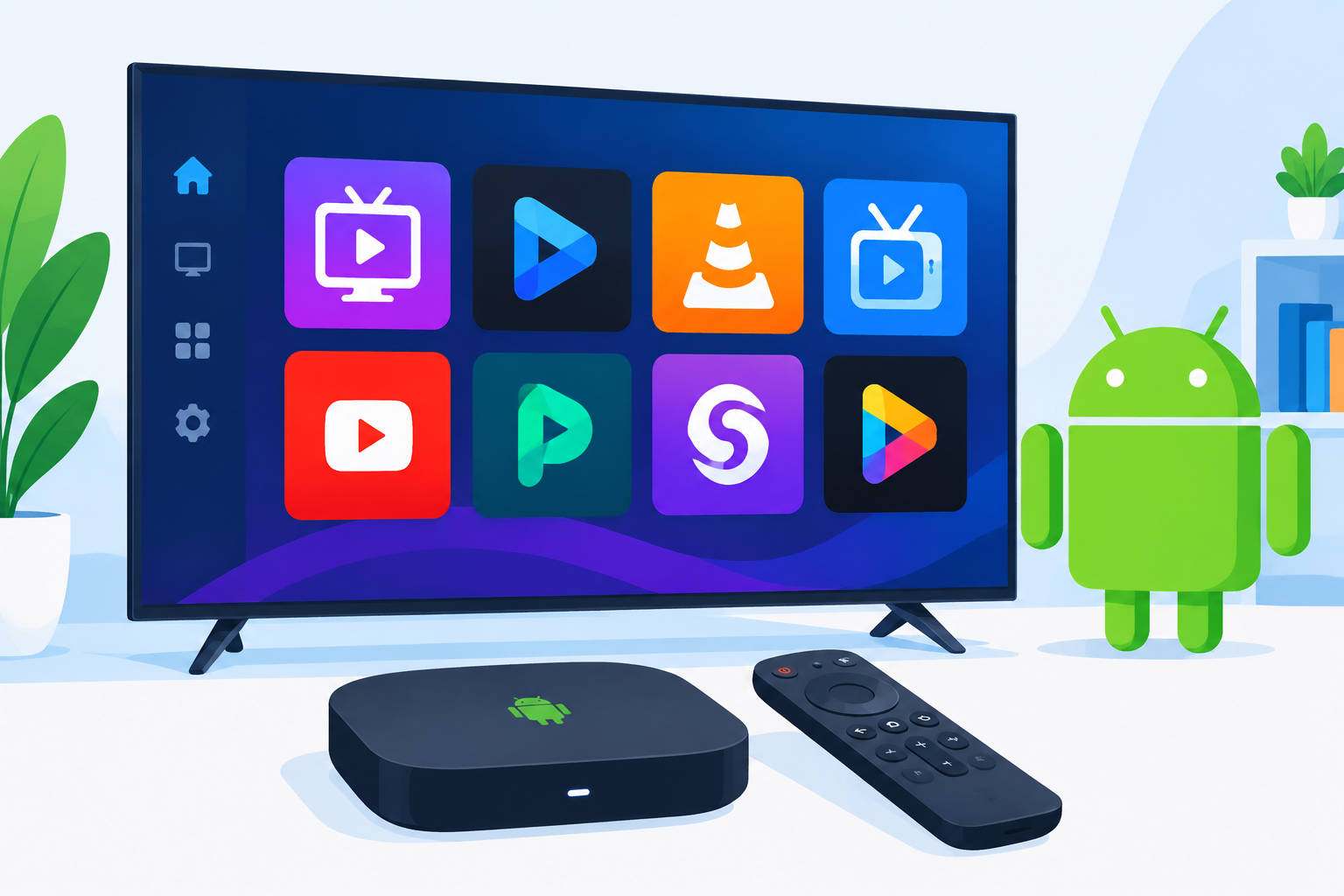
Choosing the right IPTV player can make live television easier to organize on a compatible smart TV. This guide to the Best IPTV apps for Android TV 2026 explains which player types to consider, what features matter, how to install an app safely, and how to avoid common playback problems in the United States.
Best IPTV apps for Android TV 2026: What to Look For
An IPTV app is usually a media player that loads a playlist or account supplied by an IPTV service. The app itself may not provide channels, so you should separate the quality of the player from the quality and legality of the subscription you use with it.
When comparing the Best IPTV apps for Android TV 2026, focus on practical features rather than appearance alone:
- Playlist support: Check whether the app accepts the format provided by your service, such as an M3U playlist or Xtream Codes login.
- Electronic program guide: An EPG can make it easier to browse current and upcoming programs.
- Favorites and categories: These tools help you find frequently watched channels without scrolling through a long list.
- Playback controls: Look for options such as audio-track selection, subtitles, aspect ratio, and buffer settings.
- Multiple profiles or playlists: This is useful if your household uses more than one service or playlist.
- Remote-friendly design: Menus should be easy to navigate with an Android TV remote rather than requiring a phone or keyboard.
- Privacy and updates: Prefer apps distributed through trusted stores and review their permissions before installation.
Top IPTV player options for Android TV
TiviMate
TiviMate is often considered by users who want a traditional television-style interface. Its appeal is the focus on channel organization, favorites, categories, and guide-based browsing. Before installing, confirm that the version and features available to you work with your Android TV device and playlist format.
Sparkle TV
Sparkle TV is designed for viewers who want a cleaner live-TV experience with features such as channel lists, favorites, and guide support. It can be worth testing if you prefer a layout that resembles a conventional cable or satellite receiver.
Televizo IPTV Player
Televizo is another player option for loading IPTV playlists on compatible Android devices. Its suitability depends on the playlist format, the number of channels you manage, and how comfortable you are with its navigation. Test a small playlist first if your provider offers one.
OTT Navigator IPTV
OTT Navigator may suit advanced users who want more control over channel groups, viewing layouts, and playlist organization. The large number of settings can be useful, although beginners may need time to customize the interface.
Kodi with a legitimate live-TV setup
Kodi can be used as a flexible media center, but it requires more configuration than a dedicated IPTV player. Use only legitimate add-ons, playlists, and services. Kodi itself does not automatically provide access to paid television channels.
The best choice depends on your service credentials, playlist type, remote control, and preferred interface. An app with many features is not necessarily the best option if it is difficult to navigate or does not support your provider’s login method.
How to install an IPTV app on Android TV
Android TV and Google TV devices can use apps distributed through the official Play Store. You can review the official Google TV platform information to understand the broader TV interface and device experience before choosing an app.
- Turn on your Android TV and connect it to a reliable home network.
- Open the Google Play Store from the app menu.
- Search for the IPTV player you want to test.
- Review the developer name, permissions, ratings, and recent update information.
- Select Install and wait for the app to finish downloading.
- Open the player and choose the option to add a playlist, portal, or provider account.
- Enter the details supplied by your IPTV provider exactly as shown.
- Allow the channel list and program guide to load, then organize favorites and categories.
If an app is unavailable in your region or is not compatible with your device, avoid downloading random APK files from unknown websites. Sideloading can expose your TV to unwanted software, and an unofficial app may not receive dependable updates.
For device-specific installation help, see this guide on using IPTV on a Smart TV. If you also use an Amazon Fire TV device, the instructions in this Firestick IPTV setup guide cover a different installation process.
How to configure your IPTV player
After installation, configuration determines how comfortable the app is for everyday viewing. Start with the basic login or playlist information provided by your service, then adjust the interface gradually.
Use the correct playlist details
A provider may give you an M3U URL, an Xtream Codes username and password, or portal information. These details are not interchangeable in every app. Select the matching login method and check for extra spaces when copying credentials.
Organize channels
Hide unused categories, add frequently watched channels to favorites, and place local news, sports, entertainment, and children’s programming into an order that makes sense for your household. A smaller, organized list generally makes the remote-control experience more convenient.
Adjust playback settings
If playback is stable, leave advanced buffer settings at their defaults. If you experience interruptions, test one adjustment at a time. Also check video resolution, subtitles, audio tracks, and the device’s available storage before changing several settings at once.
Users comparing the Best IPTV apps for Android TV 2026 should also consider how easily the app recovers after a network interruption. A simple reconnect option and clear error message can be more useful than a long list of advanced features.
How to improve IPTV streaming quality
Even a well-designed player cannot compensate for an unreliable connection or an overloaded service. Use these practical steps before replacing the app:
- Restart the Android TV device, router, and modem if playback suddenly becomes unstable.
- Use a wired Ethernet connection when possible, especially for high-resolution streams.
- Move the TV or router to reduce wireless interference if Ethernet is not available.
- Test another channel to determine whether the problem affects one stream or the entire service.
- Close unused apps running in the background.
- Keep the IPTV player and Android TV system updated through trusted sources.
- Contact your provider if the playlist has expired or credentials no longer work.
When evaluating the Best IPTV apps for Android TV 2026, test the same playlist in more than one player if possible. This can help you determine whether buffering comes from the app, the home network, the specific channel, or the IPTV service itself.
Safety, privacy, and legal considerations
Only use IPTV services and channels that you are authorized to access. Some services distribute content without the required rights, and an attractive channel list does not confirm that a provider is legitimate. Check the provider’s terms, licensing information, refund policy, and customer-support details before paying.
Protect your account by using a unique password, avoiding credentials shared through public forums, and removing expired playlists from the app. Do not give an IPTV player unnecessary permissions, and be cautious with applications that request access unrelated to normal playback.
If sports are your main reason for using IPTV, this guide to watching live sports without cable offers additional context for evaluating legitimate viewing options in the USA and Canada.
Common problems and quick fixes
The app cannot load the playlist
Verify the URL, username, password, and expiration date. If the provider gave you a portal address, make sure you selected a portal-based login instead of an M3U field. Copy the information again without adding spaces or line breaks.
The guide is empty
An EPG may require a separate XMLTV source or a setting supplied by the provider. Confirm that your service includes guide data and that the time zone is configured correctly for your location in the United States.
Only some channels work
This may indicate a provider-side issue, an expired stream, regional restrictions, or a playlist problem. Test several categories and ask the provider whether the affected channels are currently available.
The picture freezes frequently
Run a network test on the TV, try Ethernet, and compare a lower-resolution stream. If other streaming apps work normally but one IPTV service continues buffering, the issue may be connected to that service rather than your Android TV hardware.
FAQ about the Best IPTV apps for Android TV 2026
Do IPTV apps include live channels?
Most IPTV players do not automatically include channels. They generally provide a way to load a playlist or account from a separate service. Always confirm that the content source is authorized for your location.
Which IPTV app is easiest for beginners?
A beginner-friendly option usually has a clear remote-controlled interface, simple playlist setup, favorites, and dependable guide navigation. The right choice can vary depending on the login method and playlist supplied by your provider.
Can I use the same IPTV account on multiple Android TV devices?
That depends on the provider’s terms and the number of allowed connections. Review the subscription conditions before signing in on another television, and avoid sharing credentials beyond the permitted household use.
Should I install IPTV apps from outside the Play Store?
Use the official Play Store whenever possible. If an app is unavailable there, research the developer carefully and understand the security risks before considering any alternative installation method.
Conclusion
The Best IPTV apps for Android TV 2026 are the ones that support your legitimate service, handle your playlist reliably, and remain easy to control from the sofa. Start with a trusted installation source, test the required login method, organize your channels, and troubleshoot your network before changing players. With those checks in place, you can choose an Android TV IPTV experience that fits your viewing habits without relying on unnecessary features or unverified downloads.