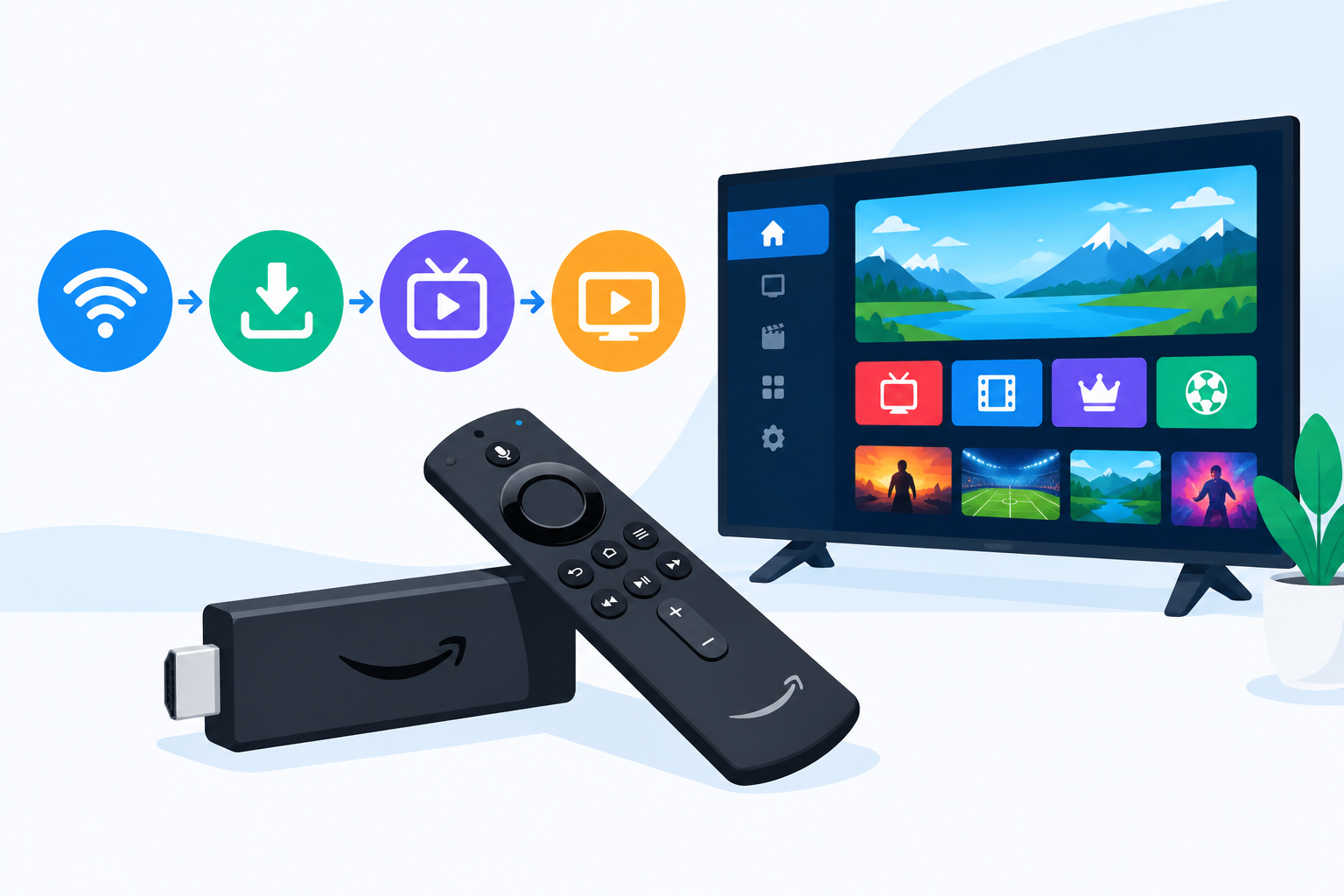
Learning how to set up IPTV on Firestick can give you a convenient way to access live television and on-demand content through a compatible streaming app. The process is straightforward when you have an active IPTV subscription, a stable internet connection, and the correct login details. This guide explains each step for Fire TV Stick users in the United States, along with setup, playback, and troubleshooting tips.
How to set up IPTV on Firestick: What you need first
Before starting, gather the information and equipment required for a smooth installation. IPTV services do not usually provide the playback app itself, so you may need to install a compatible player separately.
- An Amazon Fire TV Stick connected to your television
- A reliable home internet connection
- An active IPTV subscription from a legitimate provider
- Your provider’s username, password, server URL, M3U playlist, or Xtream Codes details
- A compatible IPTV player installed on the Firestick
Check that your Firestick is connected to the correct Wi-Fi network and has enough available storage. You can also review the official Amazon Fire TV information page if you need help understanding your device or its features.
Prepare your Firestick for the IPTV app
Connect the device and check for updates
Connect the Firestick to an available HDMI port, switch your television to that input, and complete the on-screen setup. Sign in with your Amazon account, connect to Wi-Fi, and allow any available system updates to finish before installing an app.
For how to set up IPTV on Firestick successfully, it is also important to confirm that the device has a stable connection. Open another streaming app briefly to check whether video plays without frequent buffering.
Choose a compatible IPTV player
Search the Amazon Appstore for an IPTV player that supports your provider’s login method. Some services use an M3U playlist, while others provide Xtream Codes API details or a portal address. The app must support the format supplied by your provider.
You can compare suitable options in this guide to the best IPTV apps for Firestick. Choose an app with a clear interface, regular maintenance, and support for the credentials you received.
Install an IPTV app from the Amazon Appstore
- From the Firestick home screen, select the search icon.
- Enter the name of your preferred IPTV player.
- Select the correct app from the search results.
- Choose Get, Download, or the equivalent installation option.
- Wait for the installation to complete.
- Select Open to launch the app.
Installing an app directly from the Amazon Appstore is generally the simplest option. Avoid confusing similarly named applications, and review the app name carefully before downloading it.
Enter your IPTV subscription details
Using Xtream Codes API
Many IPTV players allow you to sign in with an Xtream Codes API connection. Open the app and select the option that refers to Xtream Codes, API login, or a similar description.
- Enter a profile name, such as “Home TV.”
- Enter the username supplied by your provider.
- Enter the password supplied by your provider.
- Enter the server or portal URL exactly as provided.
- Select Add User, Login, or the equivalent button.
Do not add extra spaces or change the punctuation in the server address. If the provider gives you a port number, path, or HTTPS address, enter it exactly as shown in the setup instructions.
Using an M3U playlist
If your provider sends an M3U link, select the app’s playlist or M3U login option. Enter the playlist URL, give the playlist a recognizable name, and save it. Some apps also allow you to upload a local file, although entering a URL is usually more convenient on a Firestick remote.
After saving the connection, allow the app a moment to load channel groups, program information, and on-demand categories. Large playlists may take longer to display than smaller ones.
Organize channels and test playback
Once your IPTV service loads, open a few different categories rather than testing only one channel. Try live television, an on-demand title, and the electronic program guide if your provider includes one.
- Add frequently watched channels to Favorites.
- Use categories to reduce scrolling through a large playlist.
- Enable subtitles or audio preferences when the app supports them.
- Adjust the video player settings if playback appears stretched or cropped.
- Close unused Firestick apps before starting a long viewing session.
If you are comparing streaming setups across devices, the Digi4Smart guide to IPTV for Smart TV provides additional context about compatible television platforms and app installation approaches.
How to set up IPTV on Firestick without common problems
The app cannot be found
Confirm that you searched the exact app name in the Amazon Appstore. App availability can vary by country, device model, and account settings. If an app is not available through the official store, review the provider’s documented alternatives and avoid installing files from unknown websites.
Login details do not work
Recheck the username, password, and server address. Pay attention to uppercase letters, hyphens, periods, and forward slashes. You can also ask the provider whether your subscription is active, whether the account is limited to a certain number of connections, or whether the server address has changed.
Channels buffer or stop playing
First, restart the Firestick and your router. Move the device closer to the Wi-Fi router if possible, or use a wired Ethernet adapter compatible with your Fire TV model. Test another channel to determine whether the issue affects the entire service or only one stream.
Buffering can also result from network congestion, an overloaded provider server, or a high-quality stream that requires more bandwidth. Lowering the app’s video quality, when available, may help identify the cause.
The guide or channel list is empty
Refresh the playlist from the app settings and verify that the subscription has not expired. An empty guide may occur when the playlist URL is incorrect or when the provider has not supplied electronic program data for the selected channels.
Privacy, security, and legal considerations
Use IPTV services and content only when you have the legal right to access them. IPTV technology is simply a method of delivering television over the internet, but individual channels and programs may be subject to licensing restrictions.
Protect your account by keeping provider credentials private and avoiding apps that request unnecessary permissions. Do not enter payment information into unofficial applications, and uninstall any app that behaves suspiciously or displays unexpected prompts.
For more information about available subscription options and related services, you can review Digi4Smart’s pricing information before choosing a plan.
Frequently asked questions
Can I use IPTV on any Firestick model?
Most modern Fire TV Stick devices can run compatible IPTV players, but performance and available storage vary by model. Keep the device updated and choose an app that matches your Firestick’s capabilities.
How to set up IPTV on Firestick if my provider only gives me an M3U link?
Install an IPTV player that supports M3U playlists, select its playlist option, and paste the complete link supplied by your provider. Save the connection and refresh it if the channel list does not appear immediately.
Why does my IPTV app show a login error?
A login error usually means that one of the credentials or the server address is incorrect, expired, or entered in the wrong format. Copy the details again without adding spaces, then contact the provider if the error continues.
Do I need a VPN to watch IPTV on Firestick?
A VPN is not automatically required for every IPTV setup. If you use one, choose a reputable service and understand that it may affect connection speed or prevent a provider from recognizing your account. Always follow the laws and terms that apply to the content you access.
Conclusion
How to set up IPTV on Firestick becomes much easier when you follow the correct order: prepare the device, install a compatible player, enter the provider’s details accurately, and test several channels. Keep your Firestick updated, use a legitimate service, and troubleshoot the connection before changing multiple settings at once. With the right app and working subscription information, you can create a simple streaming setup for live and on-demand viewing.