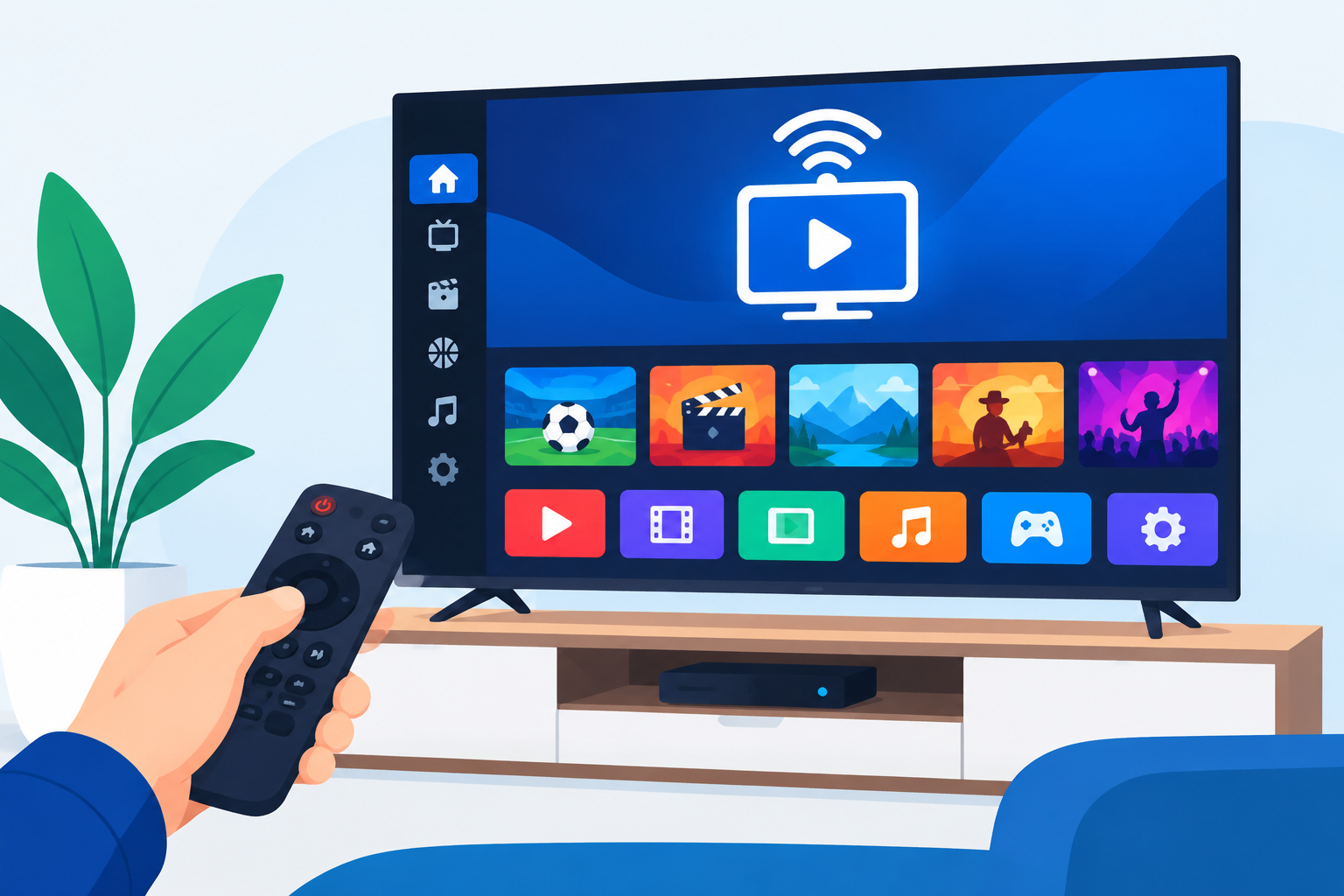
IPTV for Smart TV: A Practical Guide for Viewers in the USA
IPTV for Smart TV lets you watch television channels and on-demand content through an internet connection instead of relying only on cable, satellite, or an over-the-air antenna. This guide explains how it works, what you need, how to install an app, and how to choose a reliable, lawful service for your TV.
What Is IPTV for Smart TV?
IPTV, or Internet Protocol Television, delivers video through an internet connection. On a smart television, you normally access IPTV through a compatible streaming application supplied by your IPTV provider or available through your TV’s app store.
The experience can resemble traditional television, with live channels, electronic program guides, catch-up features, and video-on-demand libraries. However, the available channels and features depend on the provider, application, device, and subscription plan.
Before subscribing, review the provider’s channel list, supported devices, billing terms, and content rights. Digi4Smart’s main website is a useful starting point for exploring IPTV-related services and information.
How IPTV Works on a Smart TV
When you use IPTV for Smart TV, the television connects to the internet through Wi-Fi or an Ethernet cable. The IPTV application then communicates with the provider’s servers and displays the channels or programs included with your account.
Most setups require three things:
- A compatible smart TV or streaming device
- A stable internet connection
- An IPTV subscription and compatible application
Some providers deliver access through an app login, while others use an M3U playlist or an Xtream Codes-style login. The exact setup instructions should come from the provider. Avoid entering credentials into an application that you do not recognize or trust.
Which Smart TVs Support IPTV?
Samsung Smart TVs
Samsung televisions generally use the Tizen platform. IPTV apps may be available through the Samsung app store, although availability can vary by model, region, and app developer. Search the TV’s app store using the name of the application recommended by your provider.
LG Smart TVs
LG televisions typically use webOS. As with Samsung, the available IPTV applications depend on the TV model and regional app catalog. If your preferred app is not listed, check whether the provider supports an external streaming device.
Google TV and Android TV
Google TV and Android TV devices often offer a broad selection of streaming applications through Google Play. You can review the platform’s general features through the official Android TV information page.
Roku and Other Platforms
Roku, Fire TV, Apple TV, and similar devices have their own operating systems and app stores. Not every IPTV service supports every platform. Confirm compatibility before purchasing a subscription or streaming device.
What You Need Before Installation
A successful IPTV for Smart TV setup starts with a few basic checks. Confirm that your television is connected to the internet and has enough storage for the required application. If possible, use a wired Ethernet connection for the most consistent performance.
You should also have:
- Your IPTV username, password, playlist URL, or activation code
- The exact name of the recommended IPTV application
- Access to your TV’s app store account
- A current TV software version
- A subscription that permits use in the United States
For a practical walkthrough covering IPTV-related setup tasks, visit the Digi4Smart tutorials section.
How to Install IPTV for Smart TV
- Turn on your smart TV and connect it to your home network.
- Open the television’s app store.
- Search for the IPTV application supported by your provider.
- Install the application and open it.
- Enter your login details, playlist URL, or activation information.
- Allow the application to load the channel list and electronic program guide.
- Test several channels and on-demand titles before changing advanced settings.
Application names and menus differ between television brands. If an app cannot be found, do not download random files from unofficial websites. Ask the provider whether another supported app or streaming device is available.
Choosing a Reliable IPTV Service
There is more to selecting IPTV for Smart TV than comparing the number of channels. A larger list does not automatically mean better quality or a smoother viewing experience.
Check Device Compatibility
Look for clear support information covering your TV brand and operating system. A provider should explain whether its service works directly on your television or requires Fire TV, Google TV, Apple TV, or another device.
Review the Channel Lineup
Check whether the service includes the categories you actually watch, such as local news, sports, entertainment, Spanish-language programming, or international channels. You can explore available programming through the Digi4Smart channels page.
Understand Pricing and Renewal Terms
Read the subscription period, renewal policy, payment terms, and refund conditions before completing an order. A low introductory price may not reflect the full cost after renewal. Review the provider’s pricing information carefully.
Look for Support
Good technical support can make installation much easier. Check whether the provider offers setup instructions, troubleshooting guidance, and a way to contact support when your credentials or application stop working.
Internet and Home Network Tips
Streaming quality depends on the entire home network, not just the television. Place the TV within reasonable range of the Wi-Fi router, reduce unnecessary network traffic, and restart the router if the connection becomes unstable.
For better reliability:
- Use Ethernet when your TV and router are close enough.
- Prefer a 5 GHz Wi-Fi network when the TV is near the router.
- Pause large downloads while watching live television.
- Restart the IPTV application if the channel guide becomes unresponsive.
- Keep the TV software and IPTV application updated.
If multiple people stream, game, or attend video meetings at the same time, congestion may affect playback. Testing the service at different times of day can help identify whether the issue is with the IPTV provider or your home network.
Common IPTV Problems and Fixes
Channels Buffer or Stop Playing
Check your internet connection first, then restart the app and television. Try another channel to determine whether the problem affects the entire service or only one stream. A wired connection may also help.
The App Is Missing from the TV Store
The application may not support your TV model or region. Contact the provider for an approved alternative, such as a compatible streaming device. Do not install unknown applications that request unnecessary permissions.
The Channel Guide Is Empty
Verify that your subscription is active and that the playlist or login information was entered correctly. Some apps require you to refresh the guide manually or select the correct time zone.
Playback Shows an Error
Confirm that your account is not being used on more devices than the plan allows. Re-enter your credentials, update the application, and contact the provider if the error continues.
Safety, Privacy, and Legal Considerations
Use IPTV services that have the appropriate rights to distribute the channels and programs they offer. Be cautious of services promising every premium channel at an unusually low price, especially when the provider gives no clear business information or support contact.
Protect your account by using a unique password, avoiding shared credentials, and paying only through a trusted checkout process. Keep your television and streaming applications updated, and never provide payment details to an unverified website.
For questions about a particular channel or program, contact the provider directly. Availability and licensing can differ across the United States, so confirm that the service is intended for your location.
Frequently Asked Questions About IPTV for Smart TV
Can I use IPTV directly on my smart TV?
Yes, if your television supports a compatible application and your IPTV provider supports that model. Otherwise, you may need an external streaming device.
Do I need a cable subscription for IPTV for Smart TV?
No. IPTV for Smart TV uses an internet connection, but you still need a subscription to a lawful IPTV provider or streaming service for access to its content.
Why does IPTV buffer on my television?
Buffering can result from weak Wi-Fi, network congestion, outdated software, provider-side issues, or an overloaded device. Test the connection, restart the app, and try Ethernet if available.
Can I watch local channels with IPTV?
That depends on the provider and your location. Review the channel lineup carefully and confirm whether local stations, regional sports, and other U.S. programming are included.
Conclusion
IPTV for Smart TV can provide a flexible way to watch live and on-demand content over the internet. Start by confirming device compatibility, choosing a service with clear terms, and using the provider’s official setup instructions. With a stable connection, a trusted application, and a suitable subscription, you can create a smoother and more manageable streaming setup at home.