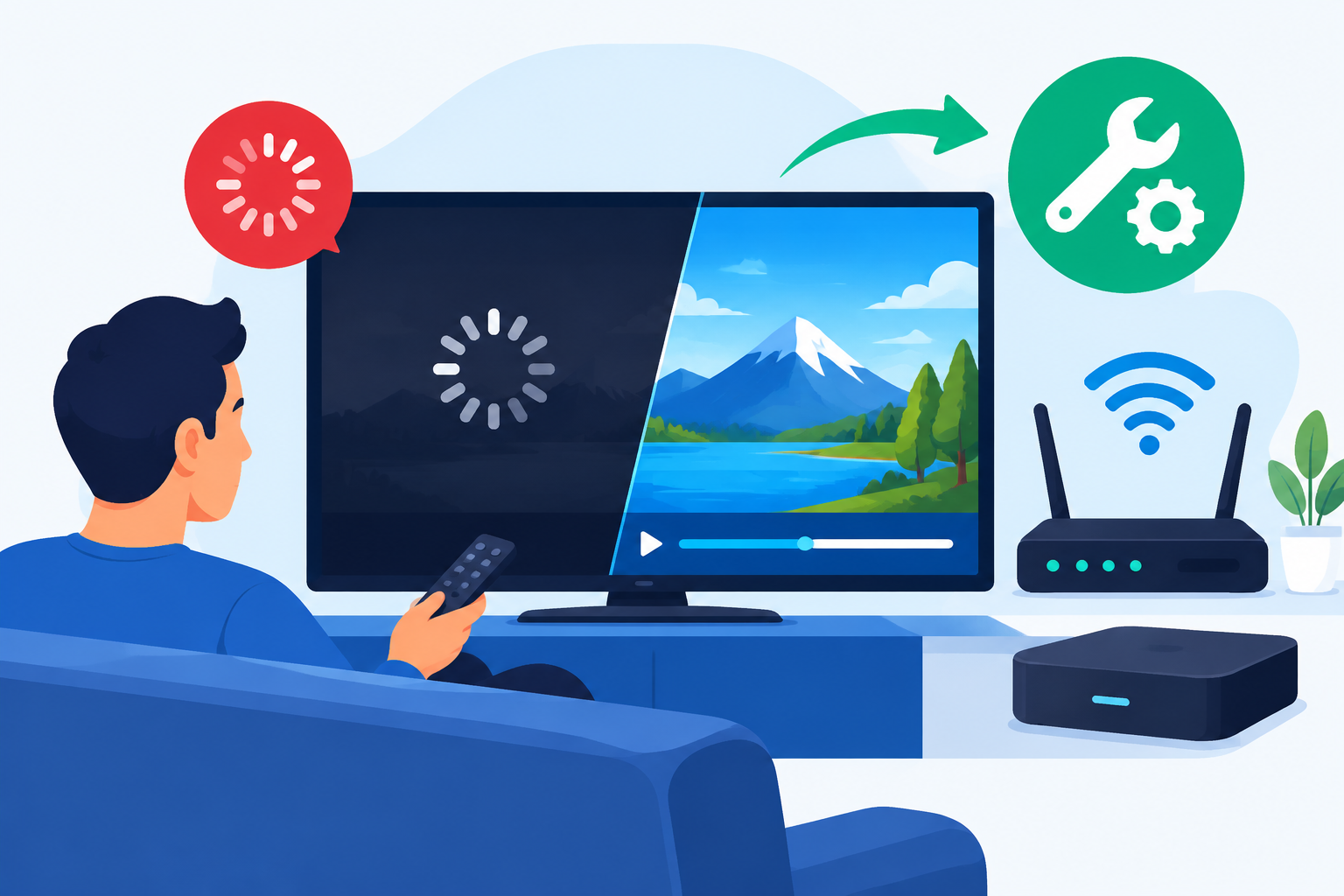
How to Fix IPTV Buffering: A Practical Troubleshooting Guide
Learning how to fix IPTV buffering starts with identifying where the interruption occurs. Buffering may be caused by a weak Wi-Fi connection, network congestion, an overloaded device, incorrect app settings, or problems with the IPTV provider. Work through the steps below to find the cause and improve playback on your TV, streaming stick, phone, or computer.
How to fix IPTV buffering step by step
The fastest way to understand how to fix IPTV buffering is to test one possible cause at a time. Start with simple network checks before changing advanced settings.
1. Test your internet connection
Open another streaming service or website on the same device. If everything loads slowly, the problem may affect your home internet rather than the IPTV app. Run a speed test from a nearby device and repeat it at different times of day.
Also check whether other household devices are using substantial bandwidth. Video calls, game downloads, cloud backups, and multiple HD streams can leave less capacity for live television.
- Pause large downloads and software updates.
- Stop unused streaming apps on other devices.
- Move closer to the Wi-Fi router for a quick comparison.
- Test IPTV with only one streaming device connected.
2. Restart your modem, router, and streaming device
A complete restart can clear temporary network and device issues. Turn off the IPTV device, unplug the modem and router, and wait about 60 seconds. Plug the modem back in first, wait until it reconnects, then restart the router and streaming device.
This simple process is often an effective part of how to fix IPTV buffering, especially when the service worked normally earlier but has gradually become unstable.
3. Use Ethernet instead of Wi-Fi
Wi-Fi signals can weaken because of walls, distance, interference, or busy neighboring networks. If your TV, Android box, computer, or streaming device has an Ethernet port, connect it directly to the router and test the same channel again.
If buffering stops over Ethernet, your internet service may be fine and the issue is probably wireless. In that case, reposition the router in an open, central location or use a mesh Wi-Fi system. Avoid placing it inside a cabinet or directly beside other electronics.
4. Improve your Wi-Fi connection
When Ethernet is not practical, try these adjustments:
- Use the 5 GHz Wi-Fi band when the device is near the router.
- Use the 2.4 GHz band when the device is farther away or separated by several walls.
- Disconnect devices that are not currently needed.
- Update the router firmware through the manufacturer’s official instructions.
- Place the router away from thick walls, metal objects, and enclosed spaces.
These changes can help explain how to fix IPTV buffering when the service plays smoothly near the router but pauses in another room.
5. Lower the video quality temporarily
High-resolution live streams require more consistent bandwidth than standard-definition video. Open the IPTV player settings and switch from 4K or 1080p to 720p or standard definition. If playback becomes stable, your connection may not be consistently handling the higher quality.
Lowering quality is a useful diagnostic step, not necessarily a permanent solution. You can raise the setting later and test again after improving your network connection.
6. Clear the IPTV app cache
A damaged or oversized cache can cause an app to behave unpredictably. On many Android TV devices, open Settings, choose Apps, select your IPTV player, and choose Clear cache. Do not select “Clear data” unless you are prepared to sign in again or reload your playlist.
On other platforms, close the app completely, restart the device, or uninstall and reinstall the player from its official app store. Keep your login details and playlist information available before removing the app.
7. Check the device’s available storage and temperature
A device with almost no free storage may run slowly or struggle to maintain playback. Remove unused apps and delete unnecessary downloads. Streaming boxes can also overheat when placed behind a television or inside a tight cabinet.
- Keep ventilation openings unobstructed.
- Do not stack the streaming device on top of another hot device.
- Restart the device after closing unused apps.
- Install operating system updates from the device manufacturer.
These device checks are an important part of how to fix IPTV buffering when other apps also freeze, crash, or respond slowly.
8. Try a different IPTV player
Some players handle playlists, codecs, and network interruptions better than others. If only one app buffers, test the same legitimate service on another compatible player or device. Use applications obtained from official app stores and avoid downloading unknown APK files from untrusted websites.
If the stream works in one player but not another, the problem is likely related to the original app’s cache, settings, or compatibility rather than your internet connection.
9. Check DNS settings carefully
DNS does not increase the bandwidth provided by your internet plan, but changing DNS can sometimes help a device resolve service addresses more reliably. If you want to test this, use a reputable provider such as Cloudflare 1.1.1.1 DNS and follow the official setup instructions for your device or router.
Write down your original DNS settings before changing them. If there is no improvement, restore the previous settings and continue troubleshooting the network or service.
10. Test different channels and times
Play several channels from the same IPTV service. If only one channel buffers, the stream source may be experiencing a problem. If every channel buffers, focus on your device, network, or account.
Test during the morning, evening, and other times when possible. Buffering that appears only during busy periods may indicate congestion affecting your home network, internet provider, or the service’s streaming servers.
Identify whether the problem is your network or the IPTV service
Knowing how to fix IPTV buffering is easier when you separate local problems from provider-side problems. Use this quick comparison:
- Only one device buffers: Check that device, its Wi-Fi signal, app, storage, and temperature.
- Every device buffers: Restart the network equipment and contact your internet provider if the issue continues.
- Only one channel buffers: The individual stream may be unavailable or overloaded.
- All channels buffer at the same time each evening: Investigate network congestion or service capacity.
- Another app works normally on the same device: Check the IPTV app, playlist, account, or provider.
Keep notes about the channel, time, device, connection type, and error message. This information makes it easier to explain the problem to your internet or IPTV service provider.
Advanced fixes for persistent buffering
Check router quality of service settings
Some routers include Quality of Service, or QoS, controls that prioritize selected devices. If configured incorrectly, these settings can reduce performance for your streaming device. Review the router’s official documentation and remove unnecessary bandwidth limits.
Review VPN performance
A VPN can add another connection point between your device and the stream. If buffering begins only when the VPN is active, test the service without it, choose a nearby server, or contact the VPN provider. Do not use a VPN as a substitute for a reliable internet connection.
Update or reload the playlist
An outdated or incomplete playlist can lead to failed connections and repeated loading. Refresh the playlist using the instructions supplied by your authorized provider. Avoid repeatedly entering credentials into unofficial websites or unknown applications.
Contact the right support team
If your internet tests are stable, other apps work correctly, and the IPTV service buffers across multiple devices, contact the service provider. Include your account information, affected channels, approximate times, device model, and whether Ethernet or Wi-Fi was used.
For related device and connectivity guidance, visit our streaming troubleshooting resources.
What to avoid when troubleshooting IPTV buffering
- Do not install random “buffering fix” applications that promise unlimited speed.
- Do not change several router settings at once, because you may not know which change affected playback.
- Do not assume a faster plan will solve a provider-side stream problem.
- Do not share your IPTV login details with unverified support accounts.
- Do not use services or streams that you are not authorized to access.
FAQ about IPTV buffering
Why does IPTV buffer even when my internet seems fast?
A speed test measures a connection to a test server, while IPTV playback depends on the route and capacity of the specific stream server. Wi-Fi interference, congestion, device limitations, or a provider-side issue can still cause buffering.
Does restarting the router help with IPTV buffering?
It can clear temporary connection problems and reconnect your network equipment. If buffering returns quickly after the restart, continue testing the Wi-Fi signal, Ethernet connection, device, app, and IPTV service.
Should I use a VPN to stop IPTV buffering?
Usually, a VPN is not the first solution. It may help only when a routing issue affects the connection, but it can also add delay or reduce performance. Test the stream with and without the VPN before deciding.
When should I contact my IPTV provider?
Contact the provider when multiple devices buffer, specific channels remain unavailable, or the issue occurs across different networks while other online services work normally. Provide detailed test results so support can investigate the stream.
Conclusion
The most reliable way to fix IPTV buffering is to isolate the cause instead of changing random settings. Test the connection, restart your equipment, try Ethernet, reduce video quality, clear the app cache, check the device, and compare different channels and times. If local troubleshooting does not help, the issue may be with the stream provider or internet route, and detailed testing will make support much more effective.