
How to Setup IPTV Smarters Pro on FireStick (Easy Guide)
The Amazon FireStick is comfortably the most popular streaming device in North America. It is affordable, portable, and incredibly easy to modify. However, because specialized streaming applications aren’t hosted on the official Amazon Appstore, many users get confused about how to get things running.
If you just bought a subscription, this guide will walk you through exactly how to setup iptv smarters pro firestick safely and quickly.
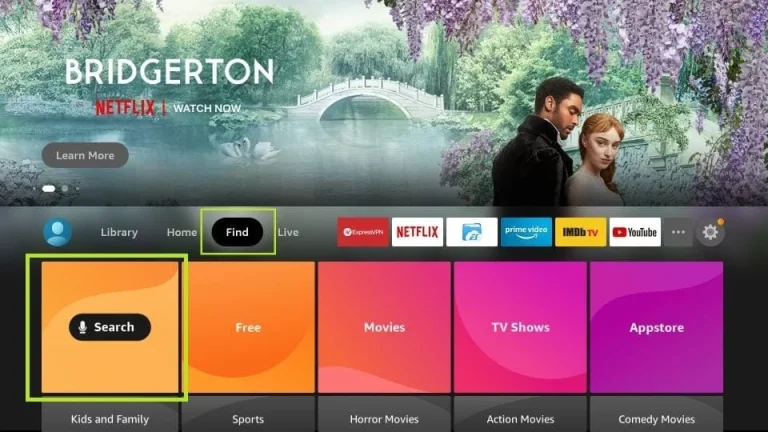
Step 1: Enable Apps from Unknown Sources
Because your app comes from a third-party source, you must configure your FireStick settings to allow installation:
- Turn on your FireStick and navigate to Settings (the gear icon on the far right).
- Select My Fire TV.
- Click on Developer Options (Note: If you do not see this, go to « About », select your Fire TV Stick name, and click the center remote button 7 times quickly to unlock it).
- Turn on Apps from Unknown Sources.
Step 2: Get the Downloader Application
You need an intermediary application to grab the installation file from the web:
- Go back to the FireStick Home screen and click on Find (the search magnifying glass).
- Type in Downloader and click the orange icon that appears under apps.
- Click Download and then open the application once installed.
- Give the app permission to access your storage.
Step 3: Download IPTV Smarters Pro APK
Now you can fetch the player that will host your channels:
- In the Downloader app URL bar, type in the direct shortcode or link provided by your IPTV host.
- Click Go. The file will automatically begin downloading.
- Once the download finishes, a prompt will ask if you want to install. Click Install.
- After it installs, click Delete to remove the setup file and save storage space on your FireStick.
Step 4: Log In Using Xtream Codes API
Open your newly installed application. To log in, you will use the xtream codes iptv setup android box credentials provided securely in your activation email. Fill in the fields exactly as follows:
Digi4SmartUsername: Enter your unique username.
Password: Enter your unique password.
Portal URL: Enter the server URL provided by us.
Click Add User, wait a minute for the full IPTV channel list and VOD libraries to load, and you are ready to watch!
If you experience any lag after installation, make sure your home router meets the best internet speed for 4K streaming requirements to avoid disruption.